Free online Skin Editor Minecraft

Skin Editor Minecraft - Create, Edit and Download Custom Skins

A flat texture can hide seams and misplaced details. Edit every pixel, inspect it in 3D, and download a clean 64×64 PNG in your browser.

64×64 skin

Local · Loading local draft…

AI from imageReference image → editable 3D skin.

Import PNGOpen an existing 64×64 or 64×32 skin.

Download PNGSave the current base + overlay as 64×64.

Checking AI availability…

Blank transparent skin

Paint a pixel on the model or use AI from image to begin.

Direct paint
Skin · 9,9
Paint the skin · drag empty space to rotate

Blank skin ready

Skin; UV column 9, row 9; base layer; pencil; color #23875b.

Drawing tools

Editing layers

Model controls

Paint the character directly, then rotate to reach each face.

Loading
Arm model
90%

Current surface

SkinUV 9,9

Local only

Loading local draft…

  • Manual pixels and imported PNG files stay in this browser.
  • Autosave restores the current draft on this device.
  • Clear draft deletes the browser save; New blank resets the canvas with Undo available.

Quick start

How to use the free Skin Editor Minecraft tool

The free skin editor Minecraft tool needs no illustration software. Begin with broad colors, add details in order, check the model often, and save only after every side looks right.

  1. 01

    Choose a starting point

    Start blank, import a modern 64×64 PNG, or open a legacy 64×32 skin. Choose Classic or Slim before drawing arm details because their layouts differ.

  2. 02

    Draw the base layer

    Block in skin tone, hair, clothing, and shoes on the base layer. Use Pencil for edges, Fill for connected areas, and Pick color to reuse a shade.

  3. 03

    Add overlay details

    Use the outer layer for bangs, hoods, cuffs, glasses, and jacket trim. Toggle it off once to confirm the base character still reads clearly.

  4. 04

    Inspect and download

    Rotate the model through every side, review both layers, and correct visible seams. Download a 64×64 PNG without resizing it or removing transparency.

Why use this Skin Editor Minecraft tool?

PixCraft is a free online skin editor Minecraft tool for immediate access and precise manual control. Drawing tools, a live model, layer visibility, autosave, and PNG export remain available without registration.

Start immediately

There is no app to install or account required for manual editing. Start with a blank texture or import an existing PNG as soon as the workspace loads.

Keep creative control

Manual tools keep every color and transparent pixel intentional. Choose the palette, place details on the base or overlay, and decide when the design is ready.

Catch seams early

A rotatable preview exposes front, back, and side-face mistakes. Separate layer controls also help you find hidden pixels before taking the skin into Minecraft.

Made for pixel-level work

Features of the PixCraft Skin Editor Minecraft tool

This free skin editor Minecraft tool keeps drawing tools, layers, history, model controls, import, preview, and export in one workspace. Check each change in 3D, undo mistakes, and preserve native pixel dimensions.

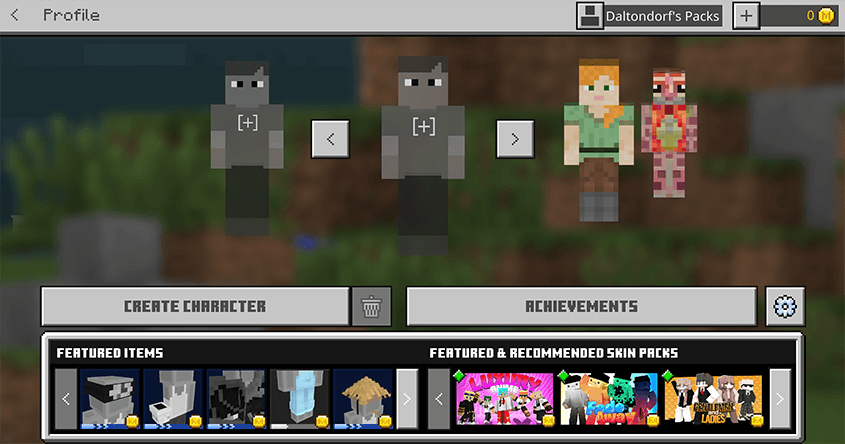
Minecraft Profile screen with character slots and skin packs

Pixel-by-pixel editing

Use Pencil for single pixels, Eraser for transparent corrections, Fill for connected areas, and Pick color to reuse a shade. Undo and Redo keep small experiments reversible.

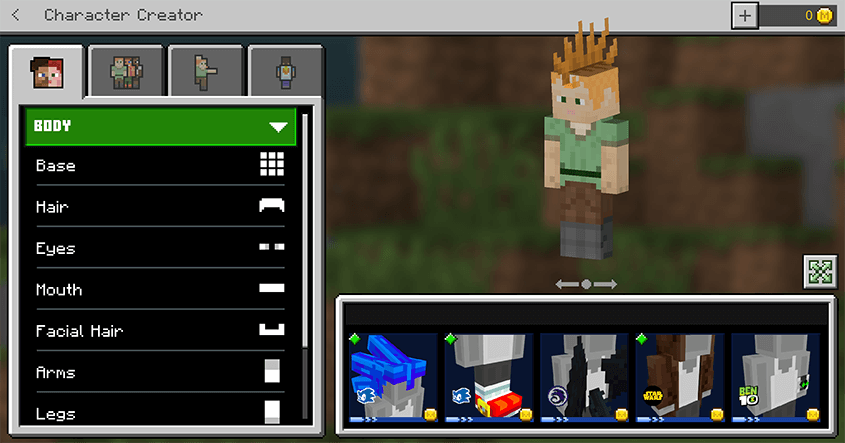
Minecraft Character Creator showing a live custom character preview

Live 3D preview

Paint on the character, rotate the preview, and inspect the front, back, sleeves, legs, and side faces. Frequent checks reveal misplaced pixels before export.

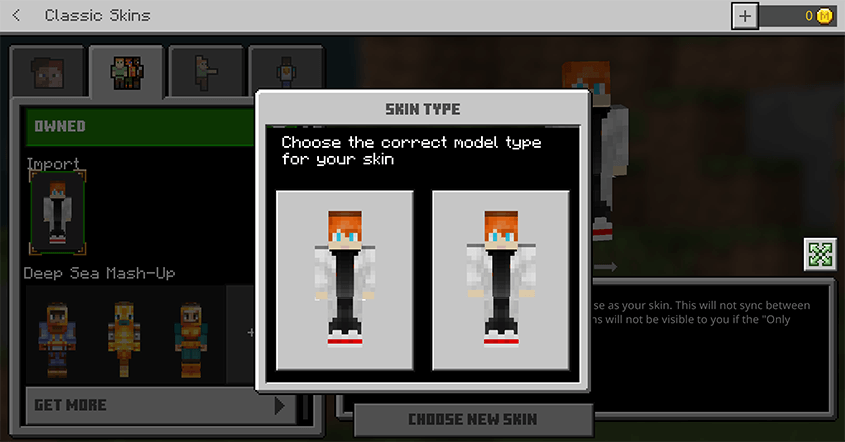
Classic and Slim models

Choose four-pixel-wide Classic arms or three-pixel-wide Slim arms before detailing sleeves. Keeping the correct model visible prevents arm textures from shifting.

Import and export PNG

Open a modern 64×64 skin or a legacy 64×32 PNG, edit it locally, and download a crisp 64×64 file that preserves hard edges and transparency.

A skin, layer by layer

Build a custom Minecraft skin with a deliberate workflow

The free skin editor Minecraft tool works best when each decision has a clear place. PixCraft keeps base colors, overlays, arm-model fit, and the final preview visible from rough idea to clean PNG.

Base colors

Block in skin tone, hair, clothing, and shoes before tiny accents. The base should communicate the character even when every outer detail is hidden.

Outer details

Use the overlay for hoods, fringes, cuffs, glasses, and jacket edges. Leave unnecessary areas transparent so the base colors remain visible.

Model fit

Choose Classic or Slim before polishing the arms. Keeping the model visible makes a sleeve designed for the wrong width easier to notice.

Final preview

Rotate the character before export. A short 3D review can reveal broken seams, reversed faces, or transparent pixels hidden on the flat map.

What you can make with a Skin Editor Minecraft tool

The skin editor Minecraft tool supports personal edits, complete redesigns, coordinated group skins, and hands-on practice with texture mapping.

Personal characters

Create an original avatar or refine an existing look, check hair and jacket overlays, and preserve sharp edges before downloading.

Existing skin refreshes

Import an older skin, update its palette, repair a sleeve, or add an overlay detail without rebuilding the entire texture.

Groups and roleplay

Give a server team or roleplay cast a recognizable color language while letting every creator keep and revise their own PNG.

Learning by making

Paint simple shapes, toggle layers, and compare the map with the model to learn how texture regions wrap around a character.

What the PixCraft Skin Editor Minecraft tool includes

Every core step stays in one browser workspace, from the first changed pixel to the exported PNG.

WorkflowWhat you can doOutputAvailability
Direct paintPencil, Eraser, Fill, and Pick colorUpdated texture pixelsAvailable
3D previewRotate, zoom, and inspect each body partVisible model checkAvailable
Layer editingWork on base and overlay texture regionsLayer-aware skinAvailable
Model controlsChoose Classic or Slim armsCorrect arm layoutAvailable
PNG workflowImport a skin and download the result64×64 PNGAvailable

Workflow design

Why the PixCraft Skin Editor Minecraft workflow stays focused

PixCraft keeps reference generation, pixel editing, 3D inspection, local recovery, and PNG export in one understandable workflow.

Design scope: reference-to-edit, direct 3D painting, local autosave, layer checks, model checks, and 64×64 PNG export.

Reference to editor

Generation stays editable

  1. 01

    Reference image to editable skin

    Editing need

    A generated texture is only a useful starting point when its pixels, layers, model fit, and seams can still be corrected.

    PixCraft approach

    Upload a reference image, generate an editable 64×64 starting point, and inspect it immediately on the live 3D model.

  2. 02

    No handoff after generation

    Editing need

    Generated details can need repainting after checking the back, sides, arm width, transparency, or overlay placement.

    PixCraft approach

    The generated skin lands in the homepage editor, ready to download, regenerate, undo, or repaint pixel by pixel.

Everyday editing

A continuous, recoverable workflow

  1. 01

    One screen from idea to PNG

    Editing need

    Moving between disconnected tools makes it harder to compare a flat texture with the final model or preserve the current draft.

    PixCraft approach

    Upload, generate, paint directly on the 3D model, check Base or Overlay and Classic or Slim, then download without a page jump.

  2. 02

    Resilient local autosave

    Editing need

    A browser refresh or closed tab should not immediately erase careful pixel work.

    PixCraft approach

    PixCraft saves the current draft to IndexedDB first, with localStorage as a fallback when needed.

  3. 03

    Clean, with a clear network boundary

    Editing need

    Users should be able to tell which editing actions stay in the browser and which optional action needs a server request.

    PixCraft approach

    PixCraft loads no advertising scripts in the editor. Manual import, painting, preview, autosave, and export stay in the browser. Only AI from image sends the reference you choose for generation.

These statements describe the current PixCraft implementation. Optional AI generation uses a server request; manual import, painting, preview, autosave, and export remain local to the browser.

Practical foundations

Four habits for better Minecraft skins

A careful skin editor Minecraft workflow uses repeatable checks. These habits keep custom skins readable, sharp, and easier to revise.

Preview

Inspect every side

A flat map can hide seams. Rotate the model, review connected edges, and compare the base with the overlay before export.

Format

Preserve the expected output

Keep PNG transparency and 64×64 dimensions intact. JPEG conversion and resizing can blur edges or remove transparent areas.

Layers

Use the overlay with purpose

Finish a readable base before raised accents. Toggle the overlay off to confirm the underlying character still works independently.

Backup

Keep a reversible copy

Save an earlier PNG before a major restyle. Browser autosave helps now; a downloaded copy provides a dependable restore point.

More PixCraft tools will get their own workflow

The skin editor owns skin-editing intent. Future circle, command, banner, and font tools will launch only when they solve a distinct task through a useful working interface.

Distinct search intent

Skin editing, circle planning, commands, banners, and lettering deserve separate routes. Similar skin keywords belong together on one strong editor page.

A real interaction

Every page needs a working editor, preview, calculator, planner, or generator that completes the promised task. Copy cannot replace utility.

Honest boundaries

A tool should state formats, editions, privacy behavior, and limits without implying official status or presenting unfinished features as available.

The PixCraft workshop

Start with a Skin Editor Minecraft tool that works right away

Skin design gets frustrating when the texture map and character preview live in separate tabs. The editor above keeps painting, layers, model checks, autosave, and PNG export together. Other PixCraft tools stay marked Planned until each has a useful workflow.

Planned

Minecraft Circle Generator

Plan circles, rings, domes, and spheres from a chosen diameter. The planned builder will turn dimensions into readable block layers without making players guess where each block belongs.

Planned

Minecraft Command Generator

Assemble Java and Bedrock command patterns with labeled fields, version notes, and copy-ready output while keeping edition differences visible.

Planned

Minecraft Banner Maker

Stack banner patterns in order, preview the result, and keep a concise crafting recipe beside it while separating visual planning from edition-specific commands.

Planned

Minecraft Font Generator

Turn short phrases into readable block-lettering plans for signs, maps, entrances, and large builds, with practical grids for scale and spacing.

Quick answers

Skin Editor Minecraft FAQ

Answers about creating, importing, previewing, saving, and downloading a custom Minecraft skin with PixCraft.

01Is this free Skin Editor Minecraft tool available without an account?

Yes. Manual drawing, local PNG import, 3D preview, autosave, and download work without signing in. Optional network features are identified separately.

02Do I need an app for this free online Skin Editor Minecraft tool?

No. PixCraft runs in a modern browser with canvas and WebGL support. Download only the finished PNG when your skin is ready.

03Can I edit an existing Minecraft skin?

Yes. Import a modern 64×64 or legacy 64×32 PNG, adjust colors or details, inspect the model, and download an updated 64×64 file.

04Should I choose Classic or Slim?

Choose the model you plan to use. Classic has four-pixel-wide arm faces; Slim has three-pixel-wide faces and a different texture layout.

05Do my manual edits stay private?

Manual drawing, ordinary PNG import, previewing, autosave, and download stay in this browser. Any separate network feature is labeled before activation.

06Is PixCraft an official Minecraft website?

No. PixCraft is independent and is not approved by, sponsored by, or associated with Mojang or Microsoft. Minecraft is used descriptively.