
See every overlap
See layer order before spending dyes or special pattern items.
From color to command
The Minecraft Banner Maker follows loom order from foundation to compatible output.
Pick a banner color and choose Banner or Shield.
Add a pattern and dye, then reorder the overlaps.
Choose a design mode and edition, then check its accuracy notes.
Follow the loom recipe or copy the compatible Java command.
A useful Minecraft Banner Maker explains the stack, recipe, and version boundary together.
See layer order before spending dyes or special pattern items.
Keep loom plans at six layers or switch to sixteen-layer commands.
Java syntax stays separated; Bedrock receives loom guidance, not invalid NBT.
Designed for real banner workflows
Visual choices remain reversible and tied to useful output.
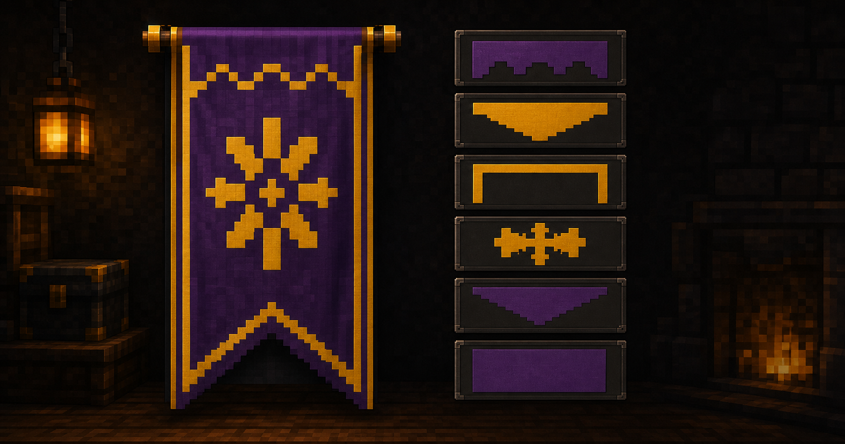
Add, remove, and reorder patterns while the banner updates.
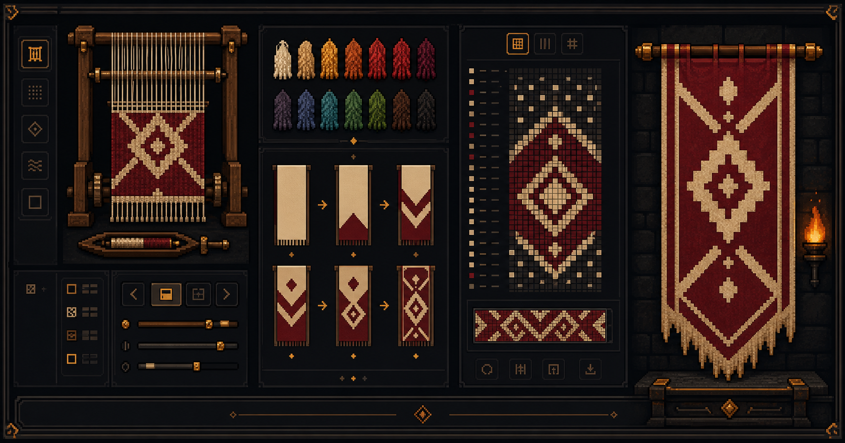
Read ordered loom actions, required items, and command output.
Modern components and legacy NBT remain distinct targets.
Preview either item with a clear accuracy note.
A clear pattern library
Patterns are grouped by visual role, keeping the library easier to scan than one long technical list.
Start flags and uniforms with horizontal, vertical, diagonal, half, and small-stripe divisions.
Layer crosses, circles, diamonds, chevrons, triangles, and corner blocks into readable emblems.
Frame the composition or soften an edge with border, indented, brick, and gradient treatments.
Use creeper, skull, flower, globe, snout, flow, or guster artwork with the required pattern-item note.
The Minecraft Banner Maker supports wayfinding and identity, not only decoration.
Develop a recognizable palette and emblem for a settlement, faction, shop, or multiplayer team.
Test how a compact motif may read on a shield before reproducing the banner in a compatible game setup.
Design consistent markers for districts, routes, storage halls, farms, portals, and exploration outposts.
Combine simple layers into initials, arrows, animals, heraldry, or recognizable signs within a six-layer Survival plan or a sixteen-layer command design.
Each path ends with a preview, recipe, or compatible command instead of unexplained code.
| Workflow | What you control | Output | Availability |
|---|---|---|---|
| Visual design | Base color, pattern, dye, and order | Live banner preview | Available |
| Layer management | Add, move, and remove six Survival or sixteen command layers | Ordered stack | Available |
| Survival route | Loom sequence and required special items | Crafting steps | Available |
| Java route | Modern components or legacy NBT | Copy-ready command | Available |
| Bedrock route | Base item and pattern sequence | Loom guide | Available |
Compatibility without guesswork
PixCraft separates visual design from command compatibility, keeping one pattern plan useful across editions.
Scope: sixteen base colors, six-layer Survival and sixteen-layer Command modes, ordered layers, material counts, two previews, loom steps, and edition-specific output.
Design accuracy
Common failure
A finished thumbnail can hide the application order and why a color disappeared.
PixCraft approach
Every layer stays named, colored, reorderable, and connected to the live preview.
Common failure
A command-only stack can mislead someone expecting a reproducible loom recipe.
PixCraft approach
The editor keeps the standard loom workflow at six layers, permits up to sixteen in Command mode, and labels the non-survival result beside the controls and output.
Edition accuracy
Common failure
Older NBT commands do not belong in modern item-component fields.
PixCraft approach
The generator offers clearly labeled modern components and legacy NBT modes.
Common failure
Changing an item name cannot make Java pattern data valid in Bedrock.
PixCraft approach
Bedrock mode returns an ordered loom guide and base item instead of fabricated pattern data.
Common failure
Banner artwork is remapped to another shield silhouette.
PixCraft approach
The shield switch remains useful for planning while an accuracy note prevents a pixel-perfect promise.
Commands still require the appropriate game permissions. Test copied output in the selected version before using it in an important world.
Better patterns with fewer layers
Strong designs use contrast, deliberate order, and repeatable tests instead of filling every layer.
Choose light and dark values that remain distinct on a moving banner and a smaller shield.
Place halves and stripes below borders, charges, and small foreground details.
Keep one slot open while exploring so a final outline or correction remains possible.
Paste commands only where cheats or operator permission are enabled, and test before mass use.
PixCraft gives every job a working bench. Separate pages handle skins, circles, commands, banners, and pixel lettering.
Each page owns one outcome and starts with a functioning tool rather than a placeholder.
Recipes, commands, PNG files, and build plans should leave the browser in a useful form.
Edition, version, preview accuracy, and survival constraints stay visible near the relevant action.
The PixCraft workshop
This banner maker turns a visual stack into a craftable plan or compatible Java command. Continue with another focused tool.
Available now
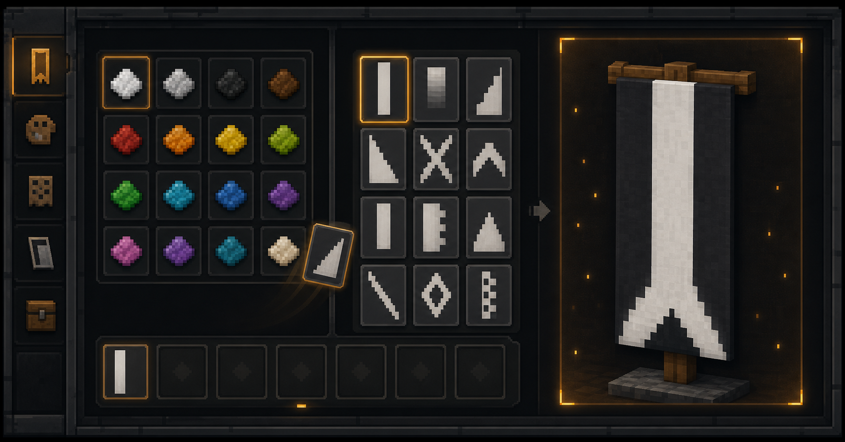
Choose a base, stack colored patterns, review loom steps, and copy syntax-aware output.
Available now
Paint a rotatable character, control base and overlay layers, and export a crisp 64×64 PNG.
Open toolAvailable now
Plan circles, rings, domes, and spheres with readable layers and block counts.
Open toolAvailable now
Build labeled Java or Bedrock command patterns and copy the selected output.
Open toolAvailable now
Create pixel-style PNG lettering and prepare clearly labeled game text formats.
Open toolQuick answers
Quick answers about layers, loom recipes, commands, editions, shields, and independence.
Yes. The designer, live preview, loom guide, and supported commands work in your browser without an account.
Six layers matches the normal survival loom limit. Switch to Command design for up to sixteen layers; the editor clearly marks layers seven through sixteen as non-survival output.
Yes. Select modern item components or legacy NBT, then copy the labeled result. Always test it in the version you selected.
PixCraft does not fabricate Java-style pattern data for Bedrock. Bedrock mode supplies a base item and the ordered loom steps for the design.
Not necessarily. A shield remaps the tall banner artwork to another silhouette, so the preview is a planning guide rather than a pixel-perfect promise.
No. PixCraft is independent and is not approved by, sponsored by, or associated with Mojang or Microsoft. Minecraft is used descriptively.